
Raspberry Pi Camera Trigger Setup Guide
Corona Designs’ Raspberry Pi DSLR Camera Trigger lets you trigger an external camera directly from a Raspberry Pi. It is ideal for automated photography, including time-lapse sequences and 3D-printing time-lapses using OctoPrint and Octolapse.
This guide covers hardware installation, testing the trigger from the command line, configuring Octolapse, and scheduling automatic camera triggers using cron.
On This Page
- Hardware Installation
- The Trigger Script
- Test the Trigger from the Command Line
- Configure OctoPrint and Octolapse
- Schedule Automatic Camera Triggers with cron
1. Hardware Installation
Before installing the trigger, shut down the Raspberry Pi and disconnect its power supply.
Turn the camera trigger upside down and align its female GPIO header with the last two pins at the end of the Raspberry Pi’s 40-pin GPIO header, as shown below. This orientation provides a compact installation, although it hides the trigger’s status LED.
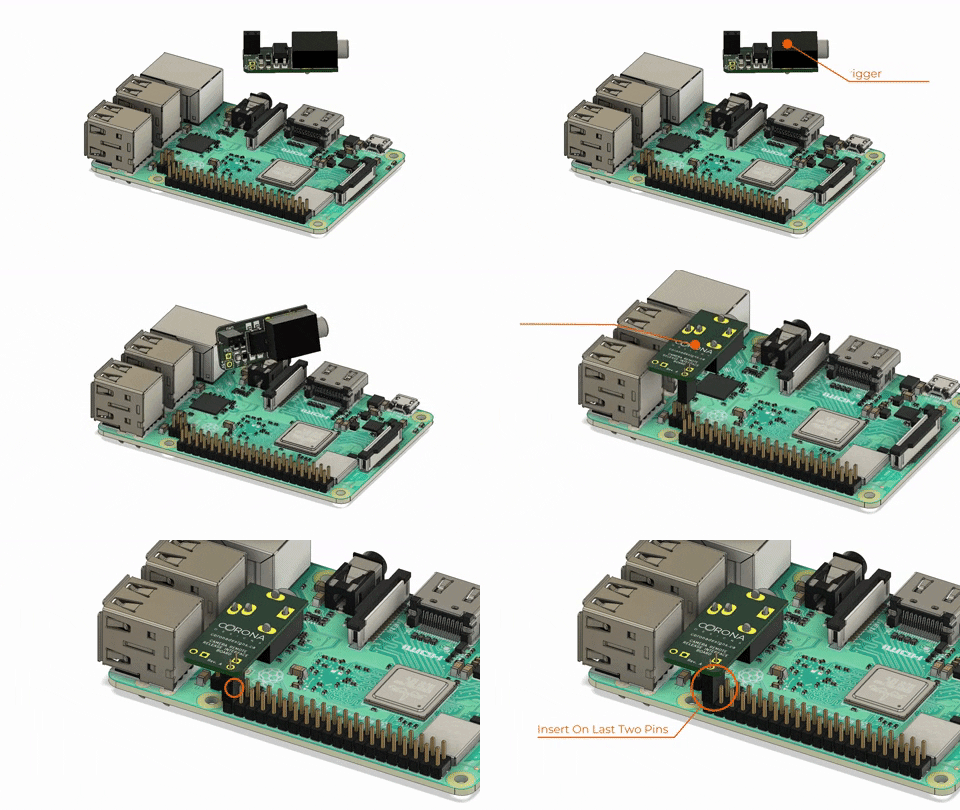
Once the trigger is installed, reconnect power to the Raspberry Pi. Connect your camera to the trigger using a compatible camera cable with a 3.5 mm plug. Depending on your enclosure, you may need to make an opening for the cable.
Note: The camera cable or adapter is not included with the trigger.
2. The Trigger Script
The Raspberry Pi needs a small script to activate the camera trigger. The following Python script sets GPIO 21 high briefly, triggering the connected camera, and then returns the output to low.
#!/usr/bin/env python
from time import sleep
import RPi.GPIO as GPIO

GPIO.setmode(GPIO.BCM)
GPIO.setwarnings(False)
GPIO.setup(21, GPIO.OUT)

GPIO.output(21, True)
sleep(0.3)
GPIO.output(21, False)
sleep(0.1)
Download the script to your home directory on the Raspberry Pi:
wget https://raw.githubusercontent.com/CoronaDesigns/examples/main/trigger.pyMake the script executable. This is useful when running it from OctoPrint or Octolapse:
chmod +x trigger.pyHow the Script Works
The script configures GPIO 21 as an output using Broadcom (BCM) pin numbering. When the output is set high, the camera trigger activates. The script holds the output high for 0.3 seconds, then sets it low again.
Pin reference: BCM GPIO 21 corresponds to physical pin 40 on the Raspberry Pi’s GPIO header.
The 0.3-second pulse provides the camera with a clear trigger signal. Although a shorter pulse may work with some cameras, the duration should be tested with your particular setup.
3. Test the Trigger from the Command Line
Before configuring any automation, test the trigger manually. From the directory containing the script, run:
python trigger.pyIf the script is in your home directory, you can run it from another directory using:
python ~/trigger.pyAlternatively, specify the full path to the script. For a user named pi, this would be:
python /home/pi/trigger.pyWhen the script runs, the trigger’s green LED should illuminate briefly and the connected camera should take a picture, provided the camera, cable and settings are correct.
If the command python is unavailable, your system may require python3. Use the command appropriate for your Raspberry Pi OS installation.
4. Configure OctoPrint and Octolapse
OctoPrint includes a built-in time-lapse feature intended primarily for webcams and other video-streaming devices. For 3D-printing time-lapses with an external DSLR or mirrorless camera, the Octolapse plugin can run an external script to trigger the camera at the appropriate point in a print.
First, install Octolapse in OctoPrint. Then configure your external camera:
- Open Octolapse Settings and select the Camera tab.
- Click Add Profile.
- Enter a name for your camera.
- Set the camera type to External Camera – Script.
- Enter the full path to the trigger script, for example
/home/pi/trigger.py. Adjust this path if your script is stored elsewhere. - Click Test Script. Confirm that the trigger’s LED illuminates and the camera takes a picture.
- Click Save.
Once the camera profile is configured, select it in Octolapse and follow the plugin’s setup instructions to configure your time-lapse settings.
5. Schedule Automatic Camera Triggers with cron
Raspberry Pi OS includes cron, a scheduler that runs commands at specified times or intervals. You can use it to trigger a camera automatically for unattended photography projects. Cron schedules have a minimum resolution of one minute.
Open your user’s crontab for editing:
crontab -eAdd a new line using the following format:
minute hour day-of-month month day-of-week commandThe five scheduling fields have the following meanings:
- Minute: 0–59, or
*for every minute. - Hour: 0–23, or
*for every hour. - Day of month: 1–31, or
*for every day. - Month: 1–12, or
*for every month. - Day of week: 0–7, where 0 and 7 represent Sunday.
Each field is separated by a space. You can use asterisks, ranges and intervals to define when a job runs.
Example 1: Trigger Every Minute
* * * * * /usr/bin/python /home/pi/trigger.pyThis runs the trigger script every minute, around the clock. Replace /usr/bin/python with the correct Python interpreter path on your system if necessary.
Example 2: Trigger Every 10 Minutes on Weekdays
*/10 9-16 * * 1-5 /usr/bin/python /home/pi/trigger.pyThis runs the script every 10 minutes from 9:00 a.m. through 4:50 p.m., Monday to Friday. To change the schedule, adjust the minute and hour fields to suit your project.
Important: Cron runs commands in a limited environment. Use absolute paths for both the Python interpreter and the script, and verify that the script works under the same user account that owns the crontab.
Save your changes and exit the editor. In nano, press Ctrl+X, then Y, and press Enter to confirm.
Verify that the new job was saved by listing your crontab:
crontab -lIf the new entry appears in the output, cron will run the script according to the schedule you specified.